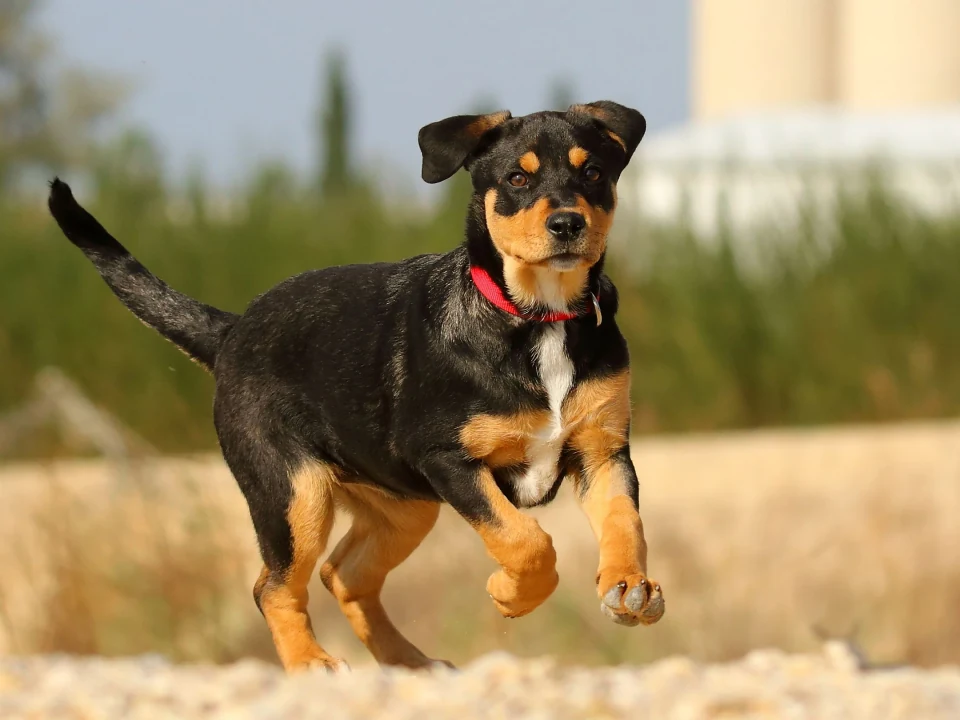
Upload your photo
Select Upload photo and choose an image, or start with the sample. Pick a canvas size that fits your picture.
Opening your canvas…
A LITTLE PICTURE. A LOT TO SAY.
Use this free speech bubble maker to add speech bubbles to pictures in your browser. Upload a photo, write your dialogue, and customize the shape, colors and tail. Download PNG, JPG or WebP, or animate your bubbles in a GIF, with no account and no watermark.
Add a line to a pet photo, show what someone is thinking, or turn a family picture into a short conversation. The editor places a new bubble over your image so you can change the words and layout before downloading.
You can add speech bubbles to pictures one at a time, move them between speakers, and adjust the font, fill and outline for each one. Keep a short line in a round bubble, use a thought cloud for an unspoken idea, or choose a shout shape for an exclamation.
Add a speech bubble to your photoFROM PICTURE TO PUNCHLINE
Follow the real editor, from your first upload to the finished download.
Select Upload photo and choose an image, or start with the sample. Pick a canvas size that fits your picture.
Click a style to change the selected bubble, or drag a shape onto the canvas to add another. Type in Bubble text and point the blue tail at the speaker. On mobile, tap Add bubble to create another.
Select Export image and choose PNG, JPG, WebP or GIF. For GIF, choose an animation and press play to preview it before downloading. For a transparent bubble, remove the photo and enable Transparent background with PNG.
Photos up to 25 MB. Images wider or taller than 2400 px are resized on import. A larger export keeps lettering sharp, but cannot restore detail missing from your photo.
THERE’S A SHAPE FOR THAT
MAKE IT A LITTLE MORE YOU
A panel, a punchline, or a pixel-perfect hello.
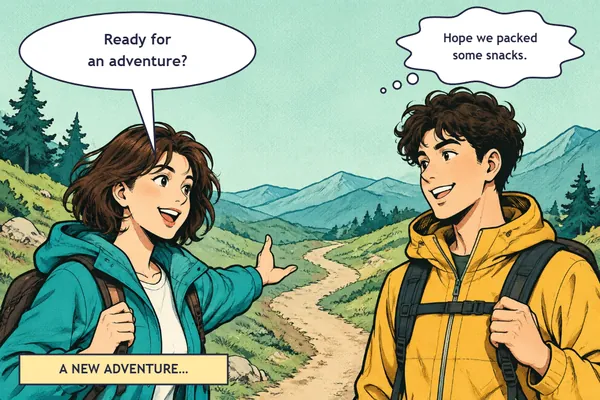
Dialogue, thought clouds and narration in one editable layout.
FOR THE GROUP CHATMeme generatorA cropped top bubble, light and dark presets, and PNG or animated GIF.
FOR A RETRO MOMENTPixel bubble generatorStepped outlines and pixel lettering for your next mockup.
NEED JUST THE BUBBLE?
To make your own transparent speech bubble, remove the sample photo, edit the bubble, and turn on Transparent background in Export image. Choose PNG to keep the area outside the shape clear. The bubble’s fill stays in place so the words remain readable.
Need a blank shape instead? Download an original bubble from the PNG library and place it in your own design. JPG is useful for a finished photo but does not preserve transparency.
Browse free speech bubble PNGsLooking for thought bubbles?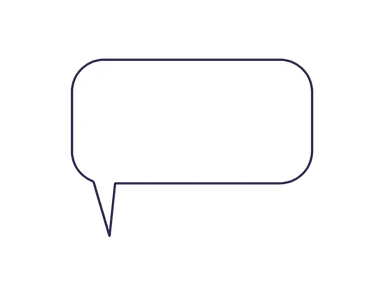 All it needs
THE WORDS INSIDE THE PICTURE
A speech bubble is a shape that holds a person’s dialogue in a picture. It is also called a speech balloon, a word bubble or a text bubble. The tail connects the words to the speaker, helping the reader follow a conversation without a separate caption.
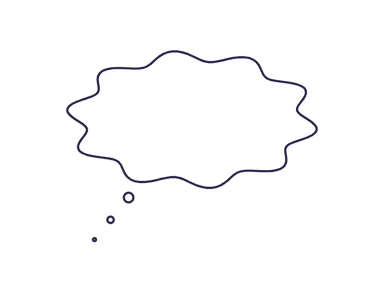
Use a smooth outline for ordinary speech and a cloud with a trail of small circles for a thought. A jagged shape suggests a shout; a caption box can hold narration without pointing to a speaker. Keep the text clear of the outline and aim the tail without covering a face.
See speech bubble types and meaningsPhoto ideas
A good photo bubble starts with a visible speaker and a short line. Upload your picture, place the bubble in an open area, and aim the tail back toward the person or animal. Keep faces and the important part of the photo uncovered.
For a blank word bubble, clear its text before exporting. For a complete photo with dialogue, keep the picture in place and download the composition.
Add a text bubble to your pictureTry “Did someone say walk?” in a round speech balloon. Use a separate reply bubble for another character, so the tail always identifies who is speaking.
Use a cloud for “Maybe one more treat…” and point its small circles toward the thinker. You can add a thought bubble to a photo without changing the original image file.
Place the first text bubble higher than the reply. Drag another shape from the palette onto the photo to add it; clicking a style changes the bubble you already selected.
Export options
Choose the file for what you will do next. A photo with dialogue is one flattened image; an editable project keeps the bubbles available for later changes.
A larger export gives the bubble outline and text more output pixels. It cannot restore detail missing from a small uploaded photo. Start with the clearest source image you have.
| Output | Use it for | What to know |
|---|---|---|
| PNG | Transparent overlays, blank shapes and crisp dialogue | Remove the photo and enable Transparent background for an isolated bubble. |
| JPG | A finished photo with speech bubbles | Includes a solid background; it cannot keep transparency. |
| WebP | A static image for web use | Check the destination app accepts WebP before sharing. |
| GIF | Animated bubbles over a still photo or a blank canvas | Choose an effect and preview the motion; GIF has a limited color palette. |
| Save project | Continuing your edit on another visit | Open the project file in the editor. It is not an image download. |
Animated GIF
Use the speech bubble GIF maker to animate dialogue over a still photo or export a moving bubble on its own. The animation is applied to the bubbles you create; an uploaded GIF is imported as one still frame.
GIF supports up to 256 colors and hard transparency edges. Exports are limited to 2 megapixels and animations fit within ten seconds. For a reusable overlay, remove the photo and enable Transparent background. Save a project too if you want to change the words later.
For a reaction image with a full-width bubble across the top, use the speech bubble meme workflow. For a static transparent shape, choose the PNG library.
Create an animated speech bubbleFix a layout
Widen the balloon, split the sentence into shorter lines, or remove a few words. Leave space between the lettering and the outline; avoid fitting a whole paragraph by making the type tiny.
Select the bubble and move its blue tail handle. Keep it away from another speaker’s face. For a conversation, use Layers to select the balloon you want before adjusting its tail.
Transparent background removes the canvas color, not the uploaded photo or the bubble’s own fill. Remove the photo for a standalone bubble. Use the transparent PNG library if you only need an empty shape.
For more examples of dialogue and thought conventions, read speech bubble types and meanings.
GOOD TO KNOW
Quick answers about your photos, bubbles and downloads.
Yes. The editor and image downloads are free, with no account and no watermark.
The editor opens and processes your photo in your browser. It does not send your image to an image-processing server. Your draft is stored on this device when browser storage is available.
Yes. Remove the photo, choose PNG in Export image, and turn on Transparent background. Transparency removes the canvas color; it does not erase an existing photo. JPG does not support transparency.
Select the bubble and drag its blue tail handle. You can also use the direction buttons under Bubble tail. Shout and caption shapes have no tail.
Yes. Add a separate bubble for each line or speaker. Each one has its own text, colors, size and position. Use Layers to select a bubble, or bring it forward and send it backward with the controls on the canvas.
Yes. Open Export image and choose GIF. Pick an animation, adjust speed and play order, then preview or scrub the timeline. GIF exports run locally and include a progress indicator and Cancel button.
The editor saves a draft on this device when browser storage is available. For a separate editable copy, choose Save project, then use Open project to load that file later. A downloaded PNG, JPG or WebP is a finished image, not an editable project.
 Thought
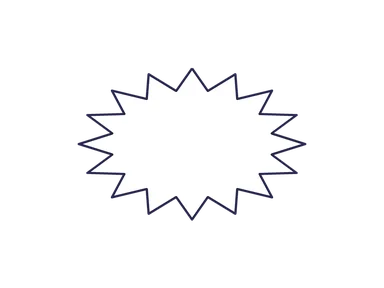 Shout
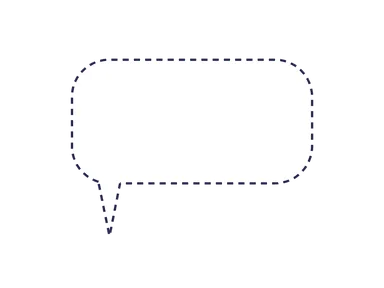 Whisper
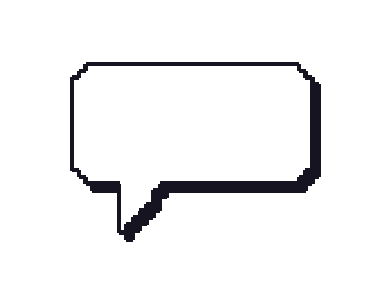 Pixel